

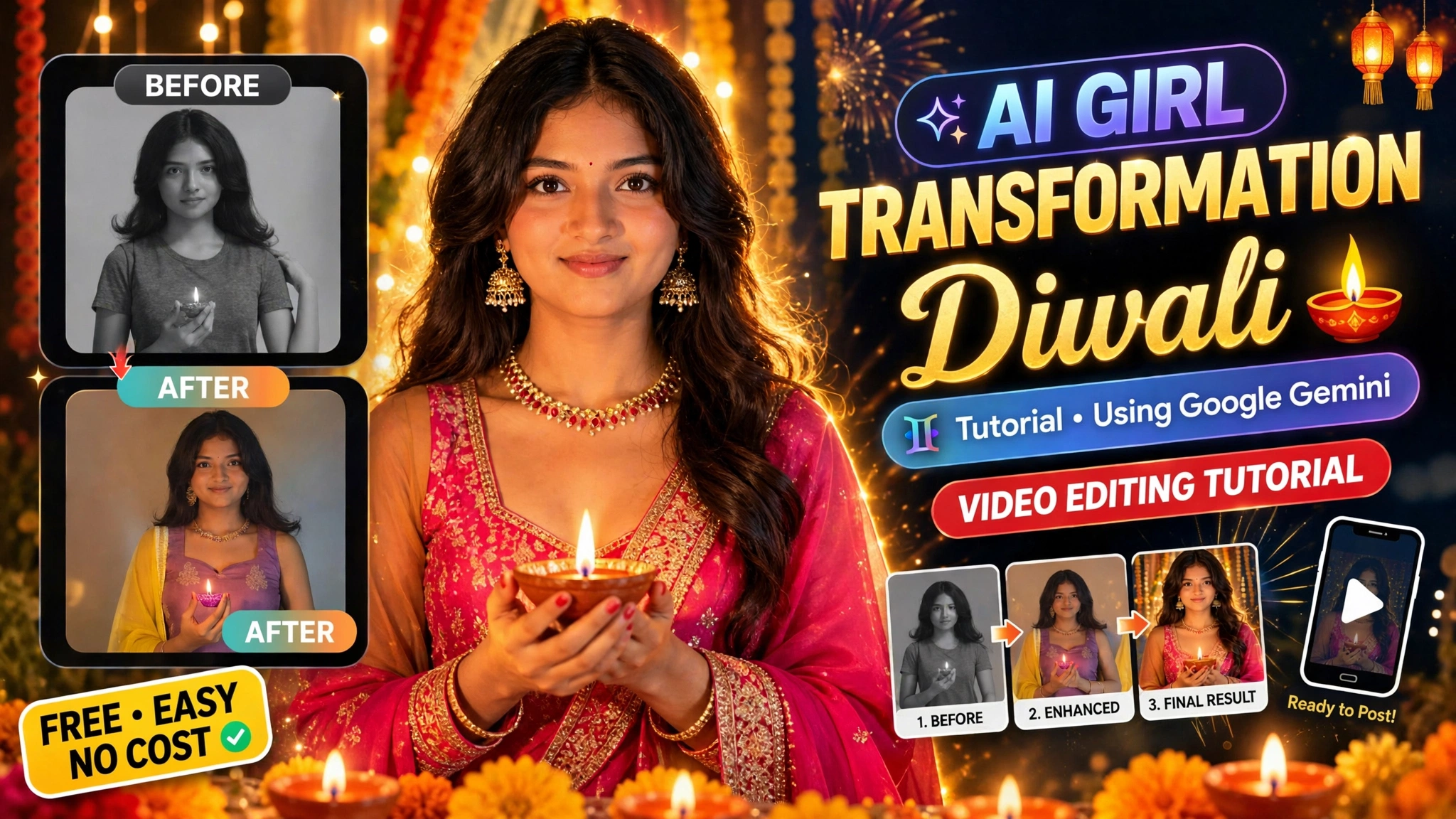
You have seen the format: a girl starts in a simple look, and a few seconds later she is in a beautiful traditional Diwali look — elegant ethnic outfit, stunning jewellery, festive background, cinematic light. The change feels smooth, not like a jump cut. That smoothness is why these transformation videos work on Reels and Shorts, and why a rough version, where the face changes halfway through, does not.
The method in this tutorial is different from writing a long scene description. You do not ask the AI to invent a Diwali look from your photo. You give it two things and one strict rule: a reference video that already contains the transformation motion and timing, and your own simple photo as the identity. The prompt’s job is to lock your identity and copy the reference’s movement — frame by frame, camera move by camera move — without redesigning you.
Read that carefully, because it changes what you should expect. This prompt does not describe an ethnic outfit, jewellery or a diya background in its text. The festive transformation itself lives in the reference video you choose. Pick a reference that already shows the simple-to-Diwali transformation you want, and the prompt transfers its motion and camera onto your face. Pick a reference with no transformation in it, and no prompt text here will invent one for you.
What You Need Before You Generate
Just three things:
- A reference video. Download the reference video for the transformation you want — simple look to festive Diwali look, with the motion, timing and camera work you like. This video is your motion source, nothing else. It does not supply the face.
- Your own simple photo. A clear photo where your face is fully visible, well-lit, front-facing. This photo is the absolute source of truth for who appears in the video.
- The prompt below. Copied in full, not shortened. Every line in it is a guardrail against the face changing mid-video.
Upload order matters: reference video first as the motion reference, then your photo as the identity reference, then paste the prompt. If you reverse them, the tool may treat the reference person’s face as the identity — and that is exactly the failure this prompt is built to prevent.
The same transfer-first discipline is behind the night bike reel in my viral girl on Bullet bike AI video edit — reference first, your face second, everything else locked.
Prompt 1 — AI Girl Transformation Diwali Video (Identity-Locked Transfer)
This prompt is written as a priority list, and the order is the point:
- Target image identity and appearance — first, always.
- Reference video motion and performance — second.
- Reference video camera movement — third.
- Natural physics and realism — fourth.
- Visual style — last.
That order means: if the reference video’s motion and your photo’s appearance ever conflict, your appearance wins. The tool is told, in plain words, not to redesign, beautify, replace, modify, age, de-age or reinterpret you, and not to change your outfit or hairstyle when your body moves. That sounds obvious, but it is the line most transformation prompts fail on — the moment the body turns, the outfit quietly changes, and by the end of the video a different person is on screen.
The output spec is also fixed by the prompt: 16:9 horizontal landscape, 1920×1080 Full HD, 30 frames per second, normal real-time speed (1×), full-frame with no black bars, no letterboxing, no pillarboxing, no artificial borders, and no unnecessary background elements. Note the format mismatch honestly: this is a landscape prompt, even though the tutorial is aimed at Reels. For a Reel, you will crop or reframe the landscape output in your editor afterwards — the prompt itself does not output 9:16, and changing that line would change the prompt you are copying.
How to Create This Video Using Google Gemini / Flow AI
The reference tutorial names both Google Gemini and Google Flow AI, so use whichever tool on your account currently offers video generation with a reference video plus a photo. The steps are the same either way:
- Open the Google Gemini app or website, or Google Flow AI, where video generation is available for your account.
- Download the reference video provided for the transformation you want.
- Select a clear photo of yourself — face fully visible, well-lit, front-facing.
- Upload your reference video along with your photo.
- Copy the prompt from the box above and paste it into the prompt box, in full.
- Click Send (or Generate). Let the tool process your inputs — video generation availability and processing time may vary depending on your account and available features.
- Preview the whole video before saving. Check it in three passes: face (same person in every frame?), motion (same timing and gestures as the reference?), camera (same moves, no invented push-ins or pans?).
- Save it to your device. Add music in the Reels editor if needed, and share it on Instagram Reels, YouTube Shorts or your platform of choice.
If video generation is not available on your account, the prompt will not fix that — availability is an account and feature question, not a prompt question. Check your account’s video options first, before burning time on photo choices.
The same identity-first rule is behind the couple coffee video in my viral Cofi trend couple coffee video prompt — faces locked, reference motion copied, nothing invented.
Small Habits That Keep the Transformation Believable
Choose the reference for its transformation, not its face. The face is being replaced by yours anyway. What you are really choosing is the transformation itself: how the look changes, how fast, with what gestures, and with what camera. A reference with a clear, simple transformation transfers cleanly. A busy, fast-cut reference does not.
Check the middle frames, not just the start and end. Transformation videos fail in the middle — the moment of change, where the tool has to hold your face while the look shifts. Scrub through the middle of the preview, frame by frame if you can. If your face holds there, it holds everywhere.
Do not shorten the prompt to “make it simpler.” The long identity and consistency sections are not decoration. Cut them, and you remove the only instructions stopping the tool from beautifying, redesigning or drifting your face mid-video. If a generation fails, regenerate with the full prompt before you try editing the prompt.
Plan the Reel crop before you post. The prompt outputs 16:9 landscape. If your destination is a 9:16 Reel, crop and reframe in your editor after generation, and check that the crop keeps your face and the transformation moment in frame. Cropping after the fact is an editing step, not a reason to rewrite the prompt’s output line.
When the Video Comes Out Wrong
The face changes halfway through. Identity drift — the classic transformation failure. Regenerate with the full prompt, and make sure your source photo is sharper and more front-facing. A blurry or angled photo gives the tool room to drift.
The outfit or hairstyle changes when the body moves. The prompt forbids this explicitly. If it happens, the prompt was shortened or the reference was unclear. Re-paste the full prompt, and re-check that the reference video’s transformation is simple enough to copy.
The camera invents new moves. Push-ins, pans or shakes that are not in the reference. The prompt forbids invented camera movement. Regenerate with the full prompt; if it repeats, use a reference with simpler, steadier camera work.
The video comes out in the wrong format, with black bars. The output spec asks for full-frame 16:9, no letterboxing or pillarboxing. A barred result usually means the tool defaulted to another aspect ratio — check your tool’s output settings before regenerating, and crop in editing for Reels.
The video does not generate at all. Check account availability first. Video generation features and availability vary by account and region, and a prompt cannot unlock a feature your account does not have.
The transformation never appears. Your reference video did not contain the transformation you wanted, or it was too subtle to transfer. Remember: this prompt copies motion and camera — it does not invent a Diwali look. Choose a reference where the transformation is clear and unmistakable.
FAQs
What do I need to make a Diwali transformation video?
Three things: a reference video that shows the transformation, a clear photo of yourself, and the prompt above. No editing skills are needed for the generation itself.
Does the prompt itself create the Diwali outfit and jewellery?
No — and that is important to understand. The prompt locks your identity and copies the reference video’s motion and camera. The festive look comes from the reference video you choose. Describe a Diwali outfit in the prompt, and you would be fighting the prompt’s own “do not change the outfit” rule.
Why is the output 16:9 if this is for Reels?
Because that is what the prompt specifies: 16:9 horizontal, 1920×1080, 30fps. For a Reel, crop and reframe the landscape output in your editor. The prompt is a transfer prompt, not a Reel-format prompt, and its output line should be copied as written.
Can I use Gemini or Flow AI?
The tutorial names both. Use whichever tool on your account currently supports video generation with a reference video plus a photo. Availability and processing time vary by account.
Why does my face look fine at the start but different at the end?
Identity drift during the transformation moment — the hardest part of this format. Use a sharper, more front-facing photo, paste the full prompt, and check the middle frames of the preview before you post.
Can I use someone else’s photo for the transformation?
Use your own photo, or someone else’s only with their permission. A transformation video that looks real should only star people who agreed to be in it, and it should be posted as an AI edit.
