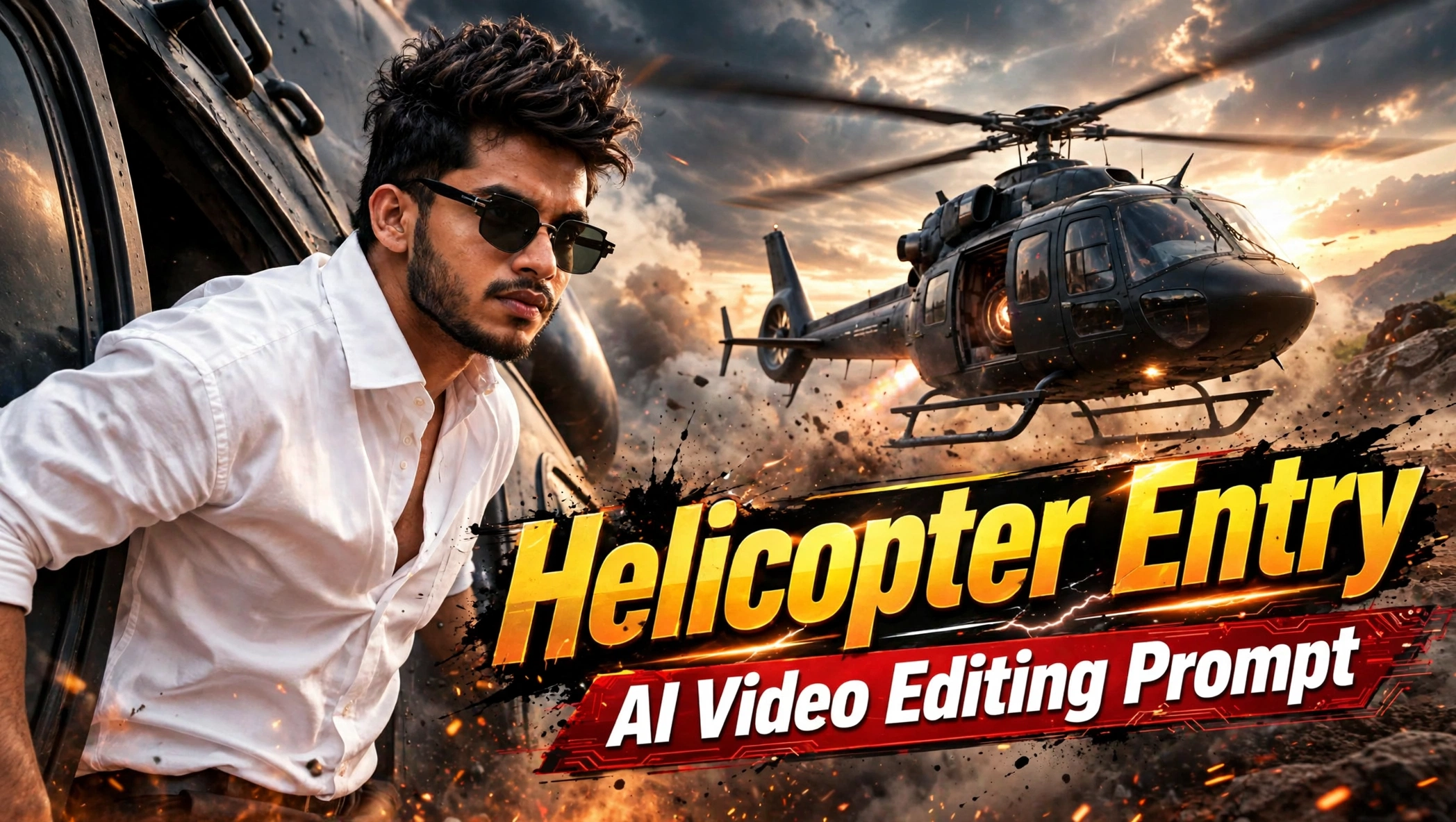
You have seen this entry. A white helicopter parked in a wide, reddish quarry. A door opens. A shoe steps out, then a hand grips the frame, then a face — serious, calm, looking slightly upward — and then the whole scene opens up as he walks toward the camera, hands starting to rise toward his collar. It is a movie hero entry, and on Reels it works even without the movie, because the structure is so clean: door, face, wide shot, walk.
The mistake most people make is trying to do it in one step — one photo, one prompt, straight to video — and then wondering why the face changes between cuts. This workflow does it in two steps, and that is the whole secret. First you build a character sheet image that locks your face, your outfit and the scene. Then you feed that locked character into the video prompt. Two prompts, one entry, no face drift.
You only need one clear photo of yourself to start. The rest is prompt, patience, and a slow-motion pass at the end.
Why This Needs Two Prompts, Not One
A video generator is good at movement and bad at memory. Give it a single photo and eight shots, and by shot four it will quietly redesign you — different jaw, different shirt shade, watch gone. A character sheet solves that by giving the video step a second reference: not just “this person”, but “this person, in this outfit, in this quarry, beside this helicopter, in these exact shots.”
So the order matters. Prompt 1 first, in ChatGPT, to create the character sheet. Download it. Prompt 2 second, in Flow AI, using that sheet plus your original photo and, where the tool asks for it, the reference video. Skip Prompt 1 and Prompt 2 has to guess. Do them in order and the video has something solid to copy.
The same two-step logic sits behind the existing helicopter entry AI video prompt on this site — this new version simply spells out the character sheet step that the older post assumes.
The Photo You Upload
Use one clear, front-facing photo, face fully visible, good light, no sunglasses, no heavy filter. The outfit in the finished video is fixed by the prompt — teal shirt, black trousers, wristwatch and bracelet — so your photo’s clothes do not matter as much as your face does. What matters is that the tool can read your face shape, eyes, brows, nose, lips, jawline, beard and hairline without guessing.
If your best photo is a side profile or a group shot, do not use it. Crop a clean single portrait first. The character sheet will copy whatever identity you give it, flaws included, so give it a clean one.
Prompt 1 — Character Sheet Image
Upload two images for this prompt: Image 1 is your photo, the absolute identity reference. Image 2 is the storyboard/master scene reference — the quarry, the white helicopter, the framing and the poses. The prompt tells the tool, in plain terms: do not redesign the person, do not redesign the scene, just put this exact person into that exact scene, shot by shot.
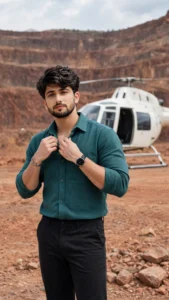
Use my two uploads with these fixed roles. IMAGE 1 is the primary and absolute character identity reference. IMAGE 2 is the master scene and storyboard reference – it controls the exact visual composition, scene, camera, framing, pose, environment and cinematic style.
Create a highly realistic cinematic vertical 9:16 image that recreates the visual sequence shown in Image 2 as accurately as possible.
DO NOT REDESIGN THE CHARACTER. Do not invent a different person. Preserve the exact facial identity from Image 1: face shape, facial proportions, eyes, eyebrows, nose, lips, jawline, beard, hairstyle, hairline, skin tone, age appearance and every recognisable feature. Preserve the exact clothing and accessories from Image 1: teal shirt, black trousers, wristwatch, bracelet and all visible accessories, with realistic fabric texture and natural clothing folds.
MASTER SCENE: A large reddish-brown open quarry with dramatic layered, terraced rocky terrain under a pale cloudy sky. A realistic white helicopter stands parked in the quarry with its side doorway open.
RECREATE THESE SHOTS IN THIS EXACT VISUAL ORDER:
SHOT 1, 0.00-1.90s: Extreme tight close-up. Only the character’s lower leg and dark shoe stepping outward through the open side doorway of the white helicopter. Camera extremely close to the doorway and positioned very low. Tight vertical composition, realistic shoe, trouser fabric and doorway detail, slow controlled cinematic feeling.
SHOT 2, 1.90-3.70s: Close side shot. The same character emerges from the helicopter doorway. One hand grips the doorway frame firmly. Upper body leans outward. Head slightly lowered. White helicopter dominates the frame. Low-angle cinematic perspective.
SHOT 3, 3.70-5.10s: Extreme close-up portrait. The character’s exact face from Image 1. Serious, calm, composed expression. No smile. Head and chin slightly raised. Eyes looking slightly upward and forward. Pale sky and a softly blurred part of the helicopter behind him. Very shallow depth of field, highly realistic skin and facial texture.
SHOT 4, 5.10-6.50s: Wide establishing shot. The complete white helicopter parked in the huge reddish-brown quarry. The character stands beside the helicopter and begins walking away from it. Layered quarry cliffs and terraced earth formations, pale cloudy sky, warm natural earthy tones. Character clearly recognisable.
SHOT 5, 6.50-7.50s: Extreme close-up of helicopter structure. A pale white helicopter structural element crosses the frame diagonally, matching the reference composition. Quarry softly blurred behind it. No unnecessary mechanical components added.
SHOT 6, 7.50-8.70s: Medium close-up. Character stands beside the white helicopter, face toward camera, serious and controlled expression. Helicopter clearly visible behind him. Chest/eye-level camera, cinematic shallow depth of field, natural outdoor lighting.
SHOT 7, 8.70-9.45s: Wider full-body shot. Character walks directly toward the camera across the reddish quarry terrain. Upright confident posture, natural arm movement, one foot naturally forward, realistic walking stance and foot placement. Helicopter visible behind him.
SHOT 8, 9.45-10.00s: Medium/full-body cinematic shot. Continue the exact forward movement. Character begins raising BOTH hands toward his shirt collar. Hands are just beginning to reach the collar. Serious, stylish cinematic expression. This must read as the exact continuation of Shot 7.
FINAL CONTINUITY: The final frame must end with the character moving forward while both hands are beginning to rise toward his collar. Do not reset his body position, change his face, change his clothing or change the environment.
VISUAL STYLE: Photorealistic cinematic action-film photography. Ultra-realistic human anatomy, natural skin pores and facial texture, realistic teal fabric, realistic black trousers, realistic white helicopter materials, natural outdoor lighting, subtle atmospheric dust, cinematic depth of field, natural motion-blur feeling, high dynamic range, professional action-film cinematography, realistic perspective, high detail, sharp character face, vertical 9:16, 4K/8K quality.
STRICTLY AVOID: A different person, identity change, face change or morphing, facial distortion, altered facial structure, different eyes, nose, lips, jawline, beard, hairstyle or hairline, skin tone change, age change, body proportion or shape change, clothing change, different shirt or shirt color, missing wristwatch or bracelet, accessory change, duplicate character, extra person, extra limbs, extra or fused or malformed fingers, malformed hands or feet, distorted body, unnatural or sliding or floating walking, robotic movement, CGI, cartoon, anime, illustration, plastic skin, fake face, blurry face, low detail, over-smoothed skin, excessive sharpening, fake expression, smile, background replacement, different or extra or deformed helicopter, changing quarry, random objects, random camera angle, random zoom or rotation, excessive camera shake, flickering, temporal inconsistency, incorrect shot order, incorrect pose or framing, unrealistic perspective.
REFERENCE PRIORITY: Image 1 is exact character identity. Image 2 is exact scene, composition, pose, camera and visual reference. Do not reinterpret or redesign anything. Match the reference as closely as possible while replacing its character with the exact person from Image 1. Keep the whole prompt as one continuous, seamless instruction, preserving shot order and all details, with no unnecessary gaps or interruptions between sections.
Prompt 2 — First 10 Seconds Video
Now the video step. Upload your original photo as the identity reference, and the reference video as the motion reference — timing, camera, framing, cuts, all of it. The prompt recreates the first ten seconds shot by shot, with hard cuts at the same moments, and it ends on a very deliberate freeze point: hands just starting to rise toward the collar.
That ending is not an accident. It is a continuity lock. If you want a longer video later, the next 10-second clip must start from that exact pose — same body position, same hand position, same camera relationship, same forward motion — without resetting the character. A video that ends mid-gesture looks unfinished; a video that ends on a held starting gesture looks like part one.
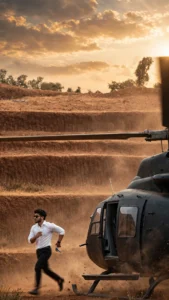
Create the FIRST 10 SECONDS of the uploaded reference video as accurately as possible.
Use my uploaded image as the PRIMARY CHARACTER IDENTITY REFERENCE. Preserve the exact face, facial features, hairstyle, skin tone, body proportions, teal shirt, black trousers, wristwatch and all visible accessories. Do not change or redesign the person. Use the uploaded reference video as the EXACT motion, camera, framing, timing and visual-style reference.
0.00-1.90 seconds: Start with an extremely tight cinematic close-up of the helicopter doorway and lower doorway area. A man’s lower leg and dark shoe move outward through the open side doorway of a white helicopter. Keep the camera very close and low. Preserve the tight vertical 9:16 composition and slow controlled movement.
1.90-3.70 seconds: Hard cut to the side of the white helicopter. The main character emerges from the open doorway. One hand holds and grips the helicopter doorway while his upper body leans outward. His head is initially slightly lowered. Camera remains close to the helicopter with a slightly low-angle perspective.
3.70-5.10 seconds: Hard cut to an extreme close-up of the character’s face. Use the uploaded person’s exact face and identity. Serious, composed expression, looking slightly upward and forward. Do not make him smile. Keep the pale sky and part of the helicopter softly visible behind him. Shallow depth of field.
5.10-6.50 seconds: Hard cut to a wide establishing shot. Reveal the white helicopter on a large reddish-brown open quarry landscape with layered, terraced earth formations. The main character stands beside the helicopter and begins moving away from it. Preserve the pale sky, warm earthy tones and cinematic atmosphere.
6.50-7.50 seconds: Hard cut to a close-up of the helicopter exterior and structural area. A pale helicopter structural element crosses the frame diagonally. Reproduce the visible movement and perspective change from the reference. Do not invent unnecessary mechanical details.
7.50-8.70 seconds: Hard cut back to a medium close-up of the character beside the helicopter. He faces toward camera with a serious, controlled expression. Helicopter visible behind him. Camera approximately chest/eye level with cinematic shallow depth of field.
8.70-9.45 seconds: Cut to a wider, full-body shot. The character walks toward the camera across the reddish quarry terrain. Upright posture, natural arm movement, realistic foot placement, steady walking speed.
9.45-10.00 seconds: Continue the forward movement and begin the next action naturally: the character starts bringing both hands upward toward his shirt collar. End the video with his hands beginning to reach the collar, so the next 10-second clip can continue from this exact physical position.
VISUAL STYLE: Photorealistic cinematic action-film footage, realistic human anatomy, realistic skin and fabric, natural outdoor lighting, subtle cinematic motion blur, realistic depth of field, high detail, smooth 30fps-style motion, vertical 9:16.
STRICTLY AVOID: Face change, identity change, different person, face morphing, facial distortion, hairstyle change, hairline change, beard change, skin tone change, age change, body distortion, body proportion change, clothing change, teal shirt changing color, black trousers changing, missing wristwatch, accessory change, duplicate character, extra characters, unwanted objects, extra helicopter, changing helicopter, changing quarry, background replacement, extra limbs, extra or fused fingers, malformed hands or feet, unnatural walking, sliding feet, floating body, robotic movement, fake expression, exaggerated smile, flickering, morphing, temporal inconsistency, background flicker, camera glitch, random zoom, random orbit, random rotation, excessive camera shake, sudden scene change, wrong shot order, wrong timing, low quality, blurry face, plastic skin, CGI appearance, cartoon, anime, unrealistic physics.
ABSOLUTE CONTINUITY LOCK: The uploaded image controls the character’s exact identity and appearance. The uploaded video controls the motion, timing, camera movement, framing and visual dynamics. Keep the exact same face, hairstyle, skin tone, teal shirt, black trousers, wristwatch and body proportions throughout. Maintain consistent identity, clothing, lighting, environment and physical proportions across every shot. Do not reset, redesign, morph or replace the character between cuts. Every shot must connect naturally according to the reference video. End exactly with the character moving forward and both hands beginning to rise toward his collar. The next clip must begin from this exact ending pose, body position, hand position, camera relationship and forward motion, without resetting the character.
How to Create This Video, Step by Step
Step 1 — Character sheet in ChatGPT.
Open the ChatGPT app, tap the plus icon, select your photo (and your storyboard reference image), paste Prompt 1, and send it. When the character sheet image is ready, download it. Check it before you move on: same face, teal shirt, black trousers, watch and bracelet present, quarry and white helicopter correct. If the sheet is wrong, the video will be wrong — fix the sheet, do not hope the video fixes it.
Step 2 — Video in Flow AI.
Copy Prompt 2. Click Create Your Video, then New Project to open Flow AI. Tap the plus icon and upload your photo and your character sheet image (and the reference video where the tool asks for it). Paste the video prompt, set the format to 9:16 and 720p, and send it. Generation takes a little while; do not send the same prompt twice while the first run is still going.
Step 3 — Slow motion in CapCut.
Once generated, you will notice the footage moves quickly in places. That is normal for a 10-second action clip. Import the video and your song into CapCut (or any editing app), tap the video layer, open the speed option, and apply slow motion exactly where needed — 0.8x, 0.7x or 0.9x, depending on the beat. Slow the walk and the collar raise, keep the door step and the face close-up near normal speed, and the whole thing suddenly reads as a polished, professional Reel instead of a rushed generation.
The same 10-second, timestamp-first workflow is behind my trending AI string art video editing prompt — a locked reference first, a timed prompt second, an edit pass last.
When the Video Comes Out Wrong
The face changes between shots. You skipped the character sheet, or the sheet itself was wrong. Go back to Prompt 1, fix the sheet, then regenerate the video from the corrected sheet.
The helicopter changes shape or color. The storyboard reference was unclear, or the prompt was shortened. Re-paste Prompt 2 in full and make sure the reference image clearly shows a white helicopter.
The walk looks like sliding, not walking. Foot placement failed. This is a common video-model weakness — regenerate with the same inputs rather than trying to mask it with slow motion, which only makes sliding more obvious.
The collar raise happens too early, or never happens. The shot order or timing was ignored. Re-paste the full prompt with timestamps intact, and check that the final frame actually ends with hands beginning to rise — that is your continuity checkpoint.
The whole video feels rushed. That is what the CapCut step is for. Do not regenerate a good video just because it is fast; slow the walk section to 0.7x–0.8x and judge it again with the song on.
The expression turns into a smile. The prompt forbids it, but some models default to friendly. Regenerate, and if it repeats, add nothing — just re-run the same prompt. A fresh run usually holds the serious expression.
FAQs
Do I really need two prompts? Can I skip the character sheet?
You can, but you will usually regret it. The sheet is what holds your face, outfit and scene steady across eight shots. Without it, the video step has to invent continuity, and it invents badly.
Can I use just one photo, or do I need a storyboard image too?
Prompt 1 asks for two images: your photo for identity, and a storyboard reference for the scene. If you do not have a storyboard image, use a clear still of the quarry-and-helicopter composition you want — the prompt needs something to copy for framing and environment, not just a face.
Is this really free?
The workflow in this article uses free tiers — ChatGPT for the sheet, Flow AI for the video, CapCut for the edit. Free allowances and credits change over time, so check your account before a run, and use your best photo first instead of testing on random images.
What if my video is longer than 10 seconds?
Prompt 2 is written for the first 10 seconds only, ending on the collar raise. For a longer video, generate the next clip starting from that exact ending pose, using the same character sheet and the same outfit, and join the clips in CapCut.
Why does my entry look fast compared to viral versions?
Because viral versions are slowed down in editing. The generated clip is intentionally quick and punchy; the slow-motion pass in CapCut — especially on the walk — is what gives it the movie feel.