

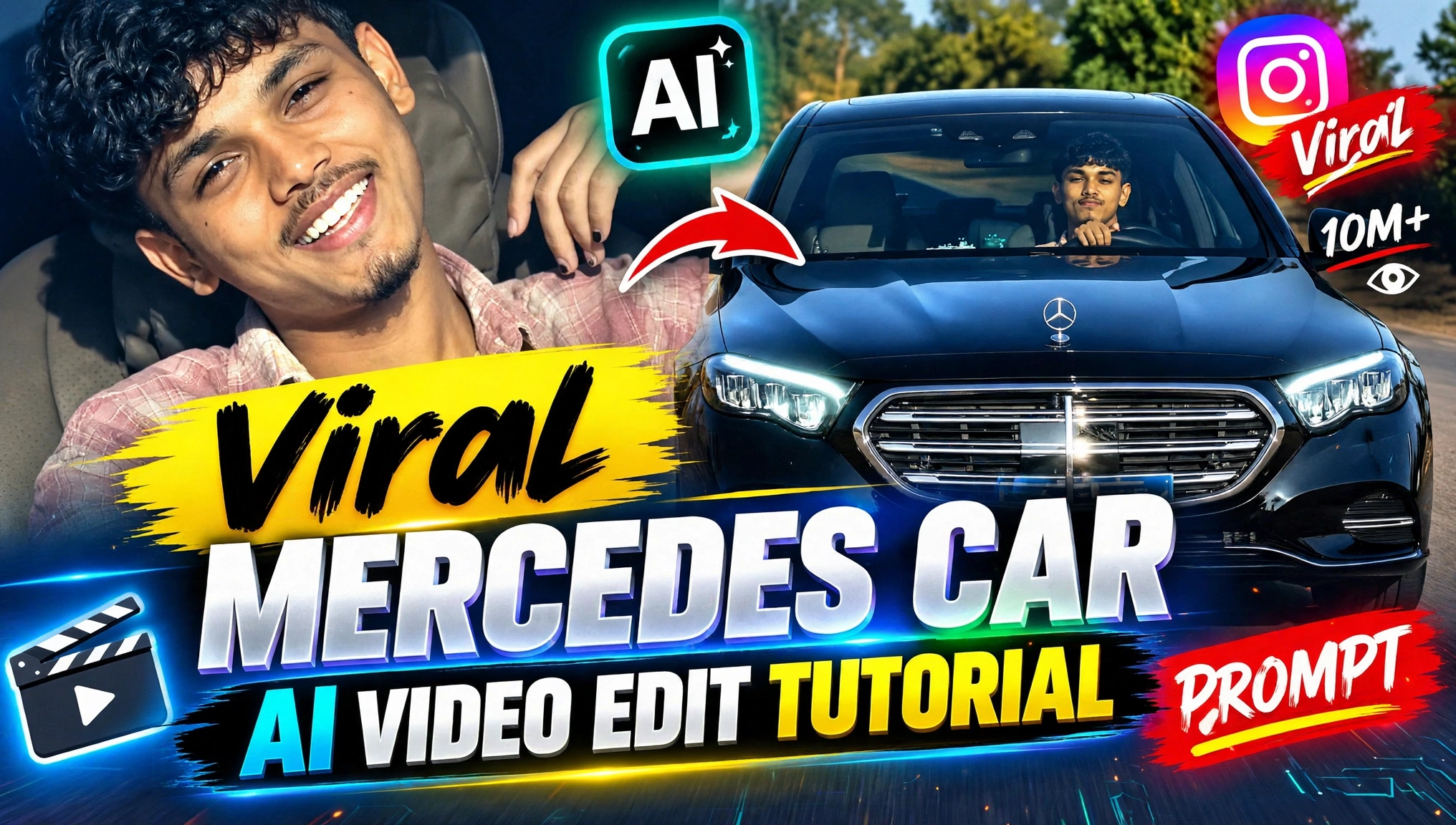
You know the video the moment it appears. A black Mercedes rolls toward the camera, close enough that the grille and the headlights fill the frame, and then — cut — you are inside, in the driver’s seat, steering wheel in the foreground, looking toward the camera with a calm, confident smile. It looks like someone actually filmed it. That is exactly why it travels: it does not look edited, it looks real.
You do not need the car. You need two things, and this is where most people get confused: the right kind of reference, and a prompt that refuses to let the tool turn everything into a glossy 3D render. Prompt 1 below does the full entry — exterior approach, then interior — and it needs a reference video plus your photo. Prompt 2 is the simpler night version: just your photo, sitting in the car, with a timed hand gesture. Use Prompt 1 when you want the viral entry format. Use Prompt 2 when you want a quick, clean night video without hunting for a reference clip.
One warning that saves a lot of wasted generations: use a reference video you actually have the right to use — your own clip, or one you have permission for. Swapping your face onto someone else’s video and posting it as your own is not a shortcut worth taking.
Prompt 1 — Real-Camera Mercedes Entry Video
Upload two things for this one: first, the reference video that controls the car, the camera and the timing; second, your character photo that controls who is sitting in the car. If you mix up which is which, the tool will protect the wrong thing and the result will look like a stranger in a stranger’s car.
This prompt’s whole job is anti-CGI. Real camera optics, real reflections, real skin — small imperfections included. The most common failure here is not the face, it is the car: a body that looks too smooth, reflections that could not exist in real glass, a car that slides instead of driving. The prompt below fights all three.
The entry formula is the same one behind my helicopter entry AI video prompt — a reference controls the movement, your photo controls the person.
How to Create These Videos in Flow AI
The reference workflow is short, so I will keep it short:
- Copy the prompt you want from the box above — Prompt 1 if you have a reference video, Prompt 2 if you only have a photo.
- Open Flow AI and click Generate Video.
- Upload your inputs in the prompt’s order. Prompt 1: reference video first, character photo second. Prompt 2: your photo only.
- Paste the prompt in full. Do not shorten Prompt 1 — its anti-CGI lines are load-bearing, and cutting them is how you get a plastic car.
- Select vertical 9:16, then send it. Generation takes a little while; do not send the same prompt twice while the first one is still running.
- Watch the whole video before downloading. For Prompt 1, check the exterior-to-interior cut and the face across the cut. For Prompt 2, check the hand gesture frame by frame — fingers are where these videos fail.
- Download the clean result and post it. If you want trending audio, add it in the Reels editor, not inside the generation.
Flow AI works on credits, and free allowances change, so check what your account currently allows before you burn a run on a test photo. Use your best photo first.
When the Video Comes Out Wrong
The car looks like a video game. The real-camera lines were trimmed, or the tool defaulted to a clean render. Re-paste Prompt 1 in full and regenerate — do not try to fix a CGI car with a follow-up edit.
The face drifts halfway through. Your character photo was too small, too filtered, or turned too far away. Swap in a sharper, front-facing photo before you touch the prompt.
The car slides instead of driving. The tool faked movement with a zoom. That is exactly what Prompt 1 forbids, so regenerate; if it repeats, use a different reference video with a clearer, longer approach.
The hand has extra or fused fingers. The most common Prompt 2 failure, and no setting reliably fixes a bad hand. Regenerate with the same photo — a fresh run usually lands the gesture cleanly.
The gesture never happens, or happens all at once. The timestamps were ignored. Re-paste Prompt 2 complete, and make sure you did not cut the sequence to save space.
The interior cut happens at the wrong moment (Prompt 1). The reference video and the prompt disagree about timing. Re-check that you uploaded the intended reference video first, not a different clip from your gallery.
FAQs
Do I need a real Mercedes to make this video?
No. That is the whole point of Prompt 1 and Prompt 2 — the car, the interior and the camera work are built by the AI from your reference. You only supply the reference video (Prompt 1) or your photo (Prompt 2).
Which prompt should I start with?
Prompt 2, if you only have a photo. It is faster to test and its failures are easier to spot. Move to Prompt 1 once you have a good reference video, because that is the format that looks most like the viral entry reels.
Is Flow AI free for these videos?
Flow AI offers free usage with limits that change over time. Check your account’s current credit balance before generating, and use your best photo first rather than testing on random images.
Why does my video look AI-generated even though I used the prompt?
Usually one of three things: the prompt was shortened, the character photo was low quality, or the reference video was unclear. Restore the full prompt, use a sharp front-facing photo, and regenerate before blaming the tool.
Can I use someone else’s viral video as my reference video?
Only if you have permission to use it. For your own content, film a short clip yourself or use a clip you are allowed to reuse. Posting someone else’s video with your face on it and presenting it as your own recording is not a safe shortcut.
Can girls use these prompts too?
Yes. Nothing in either prompt is gender-specific — identity, car and camera all come from your own uploads. The “boys” in the title reflects the trend’s usual audience, not a limit in the prompts.
